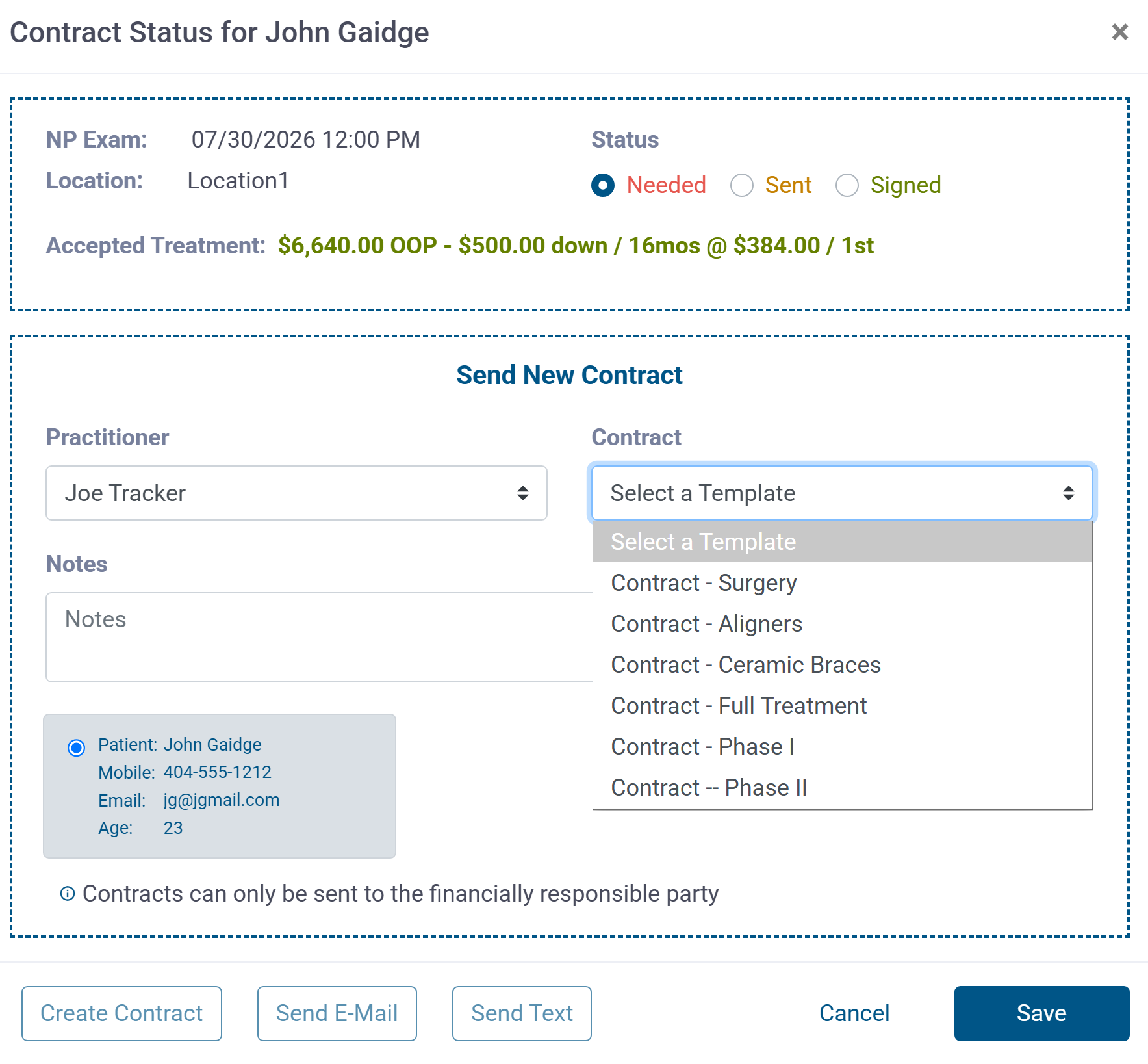
Sending Contracts Manually
Gaidge's automated contracts are based on which payment arrangements are selected, financing or paid in full. Some practices have different contracts depending on treatment type. To allow your staff to choose the contract type before sending to a patient, the Gaidge Forms Template Configuration must be updated to unmap contracts which disables the automatic send.
The financial agreement consent form should be attached to a questionnaire along with any other consent forms you wish the patient to complete. Once you have added your various contract questionnaires in forms you are ready to set this up in Gaidge Consult Manager.
For additional information on creating consent forms and questionnaires see:
Setting Up Manual Contracts
From the Gear icon select Practice Management. 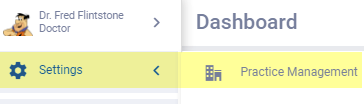
Find Consult Manager - Payment Plans on the left-hand menu.
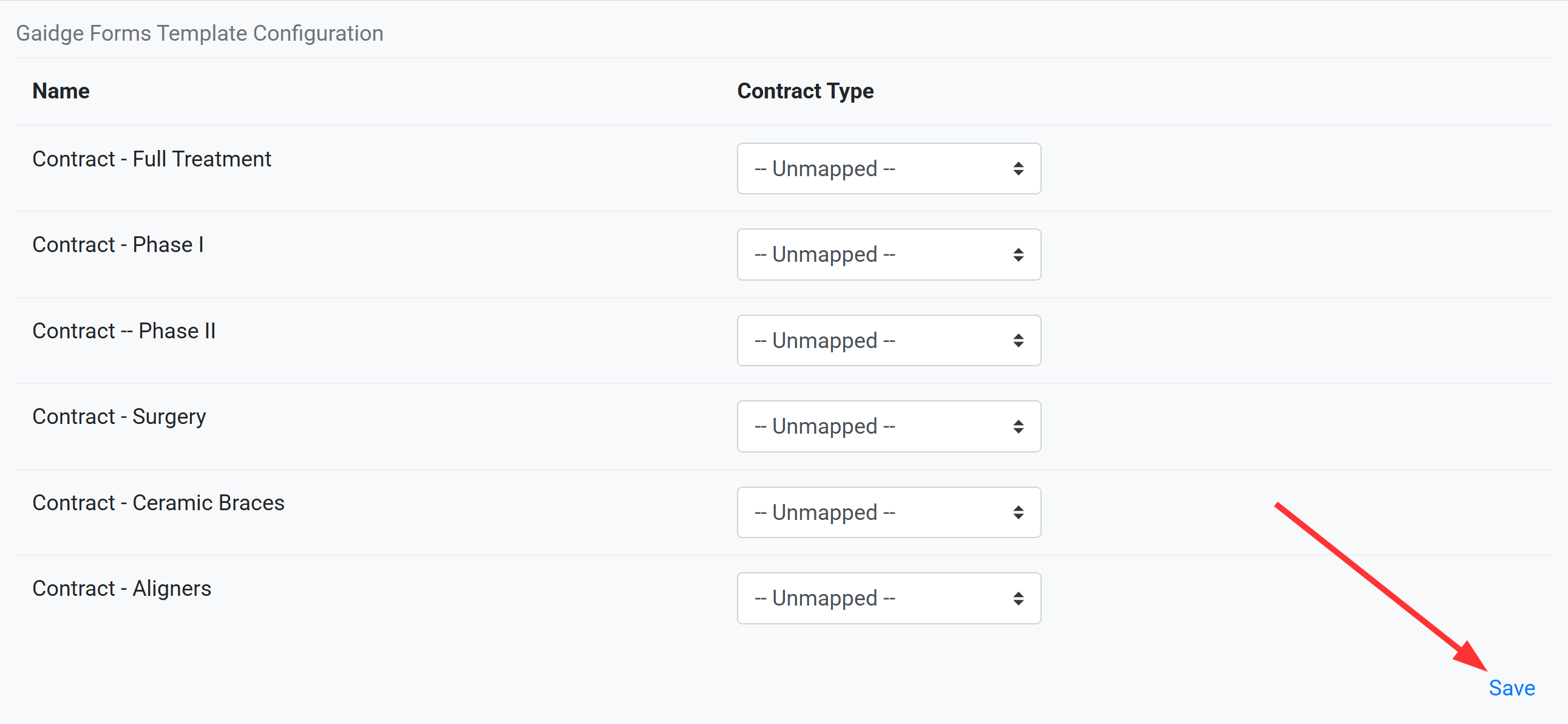
 Scroll down to Gaidge Forms Template Configuration and select Unmapped for all contract types. Save
Now when treatment is accepted, you (or the remote patient) will be presented with a screen similar to
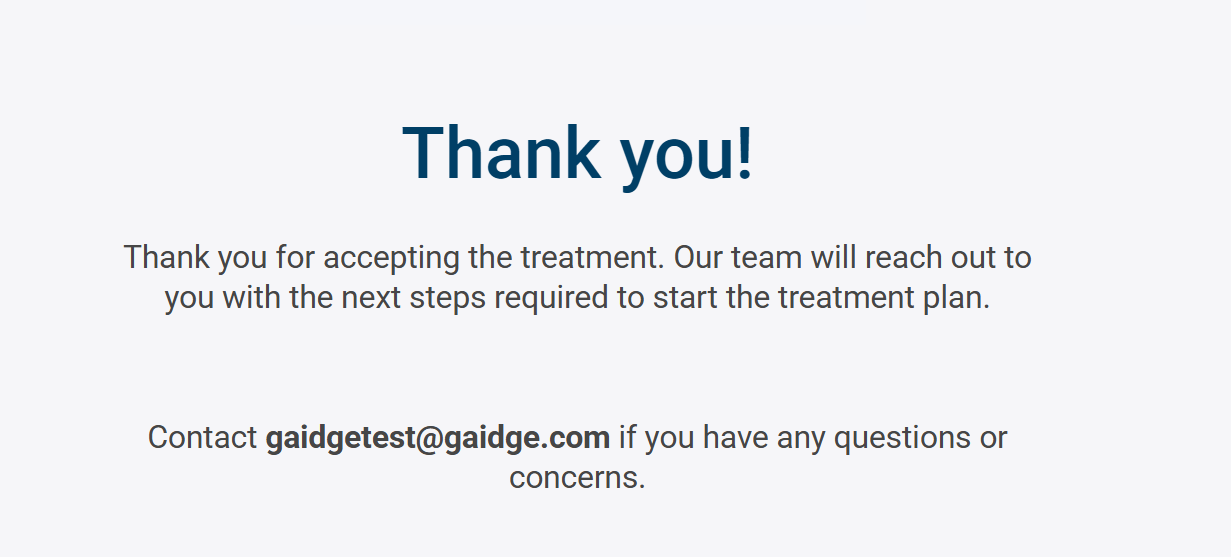
You may close that tab and click on Contract in the patient header.
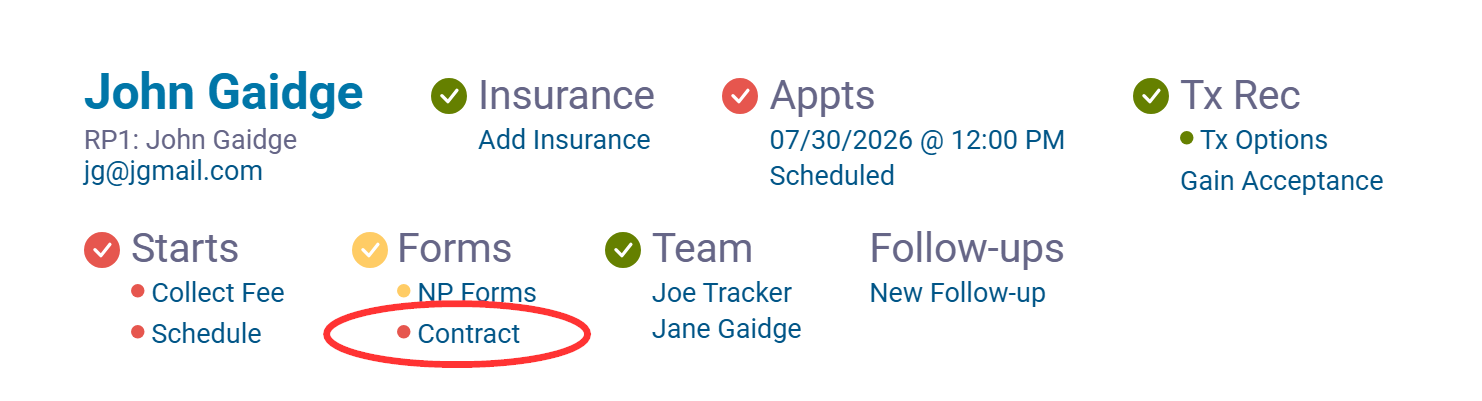
That opens the Contract Status screen where you can select a contract
- to create for a patient in-office
- or send email or text for a patient who accepted remotely.