
Setting Up Your Email Sender
From the main Forms menu, select Preferences.

Email Sender
The email sender lets you set the from address on your outgoing emails. If there is no email sender set up all emails will come from [email protected].

Once you've added your Sender Display Name and your custom Sender Email Address, or if you have done this previously, check your DNS Settings. If you see DNS Setting Pending, as is shown in the image, please ask your IT team to follow the instructions below.
Instructions for your IT team to add DNS records to your domain
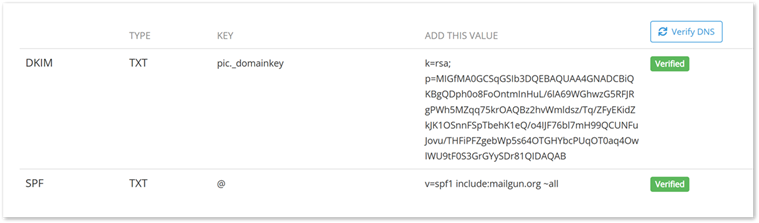
- Go to your Email Sender Settings (More > Settings > Email Sender). If there is no custom email sender set up, please add your sender’s name and email address and confirm the email sender by clicking the link in the confirmation email. The DNS records will then be displayed on a table at the bottom of the page.
- In a separate tab, login to your domain host's website (e.g. Wix, GoDaddy, BlueHost, Squarespace, etc.) and navigate to the DNS section of your domain.
- Both DKIM and SPF are TXT type records and will need to be added under Custom Records if that option is available. You don't actually need to enter DKIM or SPF anywhere, these are not values but are informational only. Click Add Record or your domain's equivalent.
- Copy the data from Gaidge Forms from the Key column and paste that value into your domain host in the Host, Name or Key field. If you hover over the Key text in Forms, you will see that some providers require the full hostname, so take note of that in case your host needs it.
- Note: Some systems append your domain name at the end of the DKIM key and this will often prevent us from being able to verify the address. You will want to remove this if possible.
- Next, copy the data under the Add this value column and paste that into your domain host in the Value, Data, or Text field and save the record.
- Note: if an SPF record already exists in your domain's DNS records, instead of adding a new record, find the SPF value in your domain host and replace it with the value from Gaidge Forms (the Value for SPF records starts with "v=spf1").
- Go back to Gaidge Forms and click the Verify DNS button to verify the new records. Once verified, the records will show a green Verified tag.
- Once the DNS records show as Verified, please send a form to a test client to ensure that the email sender is functioning correctly. Please reach out to us if you get an error message.
Please review the following support articles for instructions about adding DNS records to the most common domain hosts:
Wix: https://support.wix.com/en/article/adding-or-updating-txt-records-in-your-wix-account
GoDaddy: https://www.godaddy.com/en-ca/help/add-a-txt-record-19232
BlueHost: https://www.bluehost.com/help/article/dns-management-add-edit-or-delete-dns-entries
Squarespace: https://support.squarespace.com/hc/en-us/articles/31120985010957-DNS-records-for-email
If you find you need additional support, please email us at [email protected] and we can work with your IT team to complete the setup.