
Adding Insurance Carriers to Your Practice
In the Gaidge Practice Management screen you can setup your options for the Gaidge Consult Manager.
At the top left of the screen click on the Gear icon, then Practice Management, then locate Consult Manager on the left-hand menu.


Insurance Options
Go here to add insurance carriers and to set whether amounts are rounded to the nearest dollar or left exact.
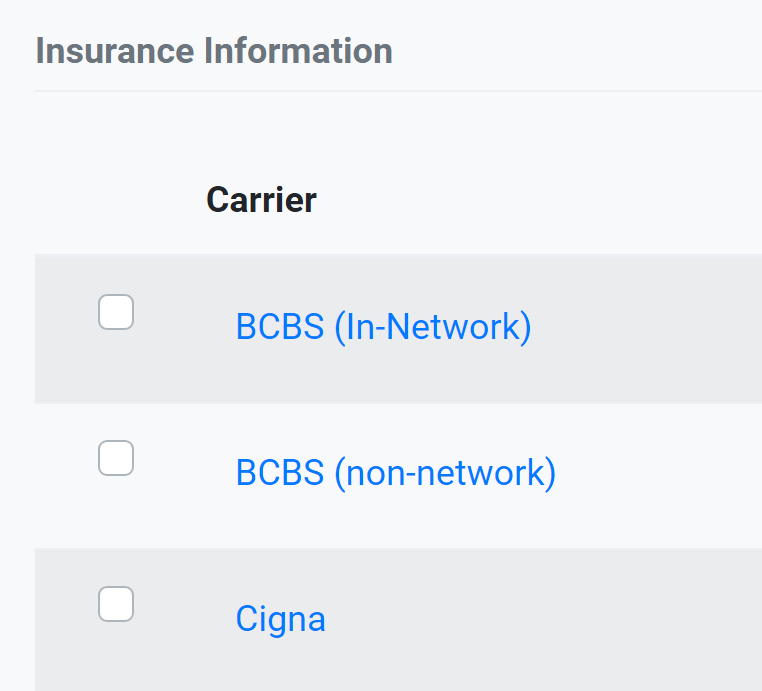
Insurance Information
Click on Add New Insurance.

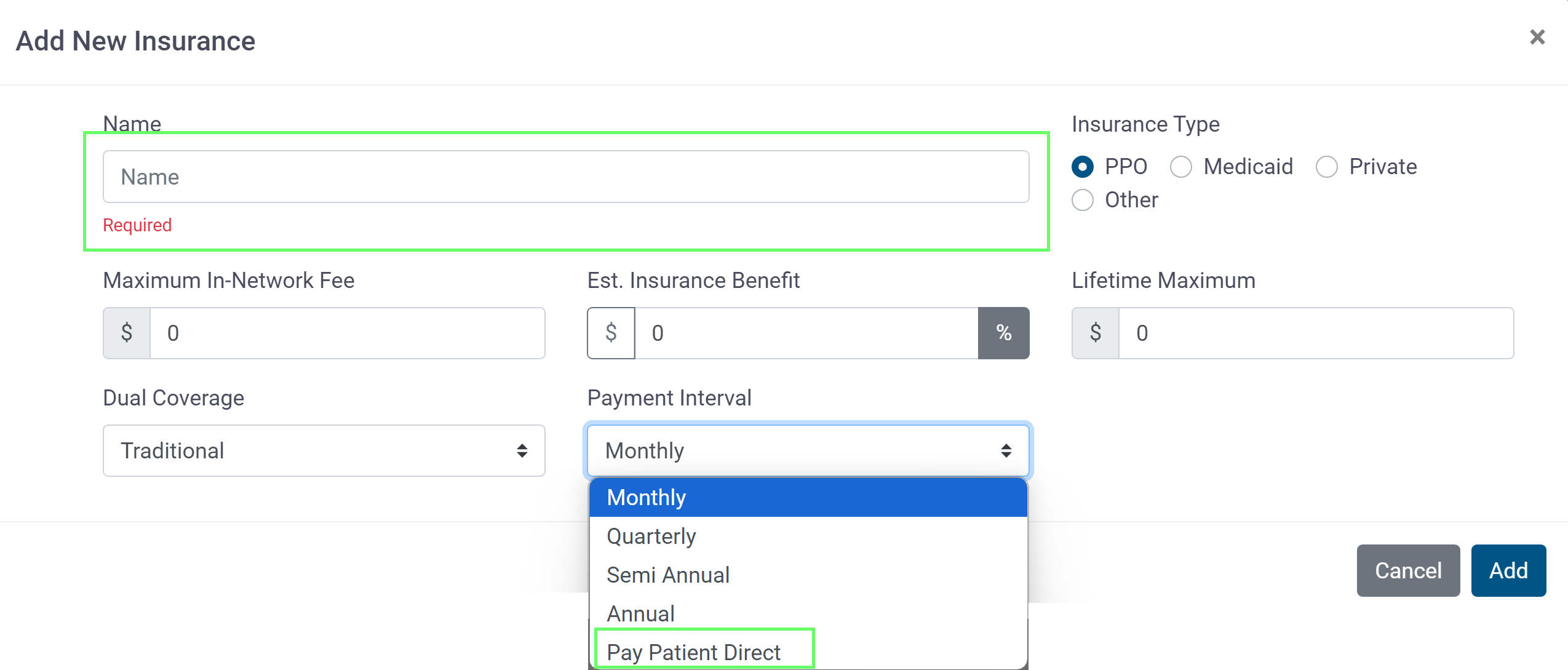
Type in the carrier name. This will display/print on the treatment presentation and contract.
Next, enter Payment Interval - only update if Pay Patient Direct (Pay Patient Direct insurance does not affect the contract amount) As this is a template, all other fields can be ignored!
Pay Patient Direct
If a carrier pays the patient directly - Select Pay Patient Direct in the Payment Interval box
 This will show that there is coverage, but it does not affect the contract.

You may want to add a treatment note regarding the carrier requirement:

Financial Preferences
Here you set the system to either round all amounts to the nearest dollar (no cents) or leave unrounded (include cents.) Please NOTE that a change in setting will apply to new patients only!
